
The AI website builder
you just talk to.
Tell Buddy, the AI built into your store, what you want. It writes the page in the live canvas, on brand, while you watch. Then take manual control of any element, down to the CSS rule, without leaving the editor.
Buddy building a store in the live canvas, from the first prompt through to Publish.
Two ways to start.
Neither needs a developer.
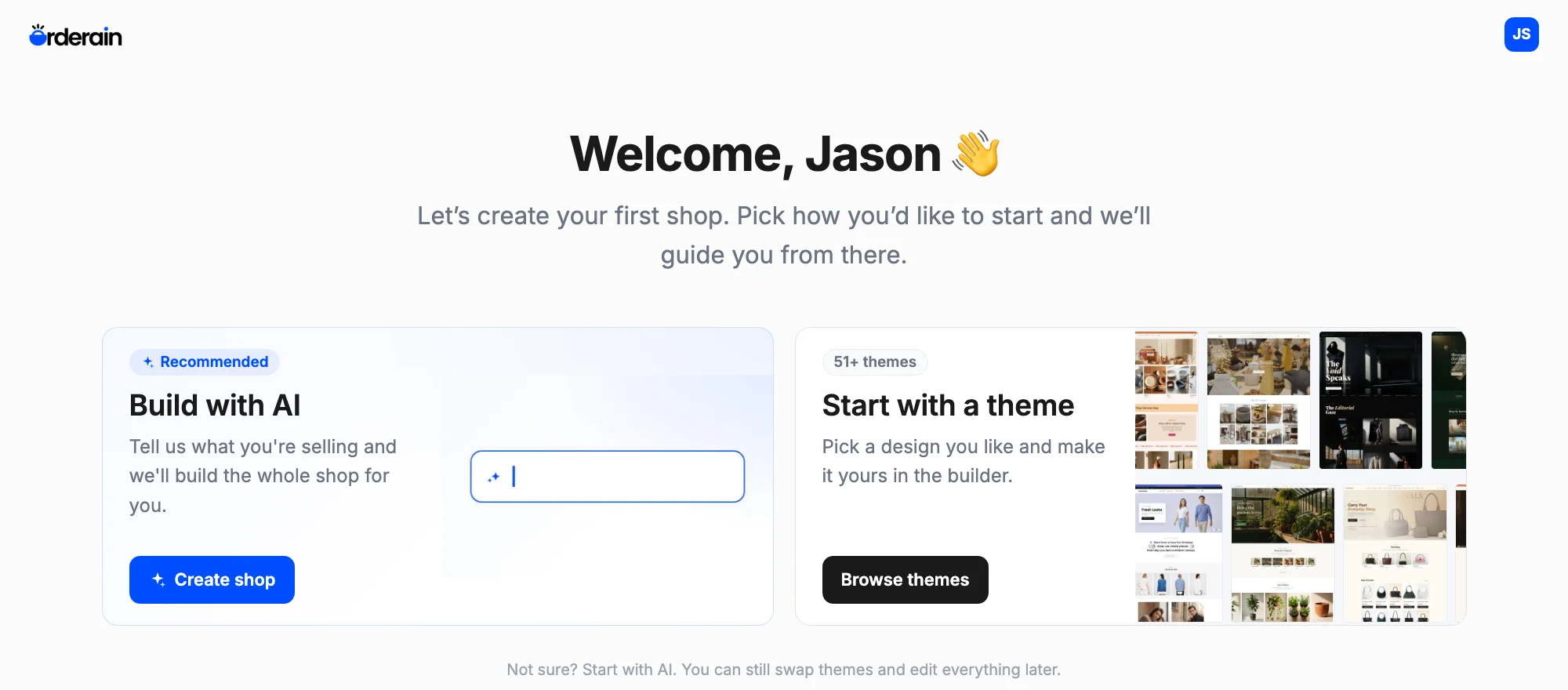
Building with AI is the quicker route: describe the store you want and Buddy builds the whole shop, branding, pages and products included. A theme gets you the same editor and the same Buddy, with the layout already decided.
Build with AI Recommended
Tell us what you are selling and Orderain builds the whole shop for you: branding, pages, and products.
Start with a theme 51+ themes
Pick a design you like and make it yours in the same builder.
Your storefront, live
in the middle of the editor.
The canvas renders the real store. Seven panels down the left do everything else, and Buddy is one of them, open beside the store it is editing.
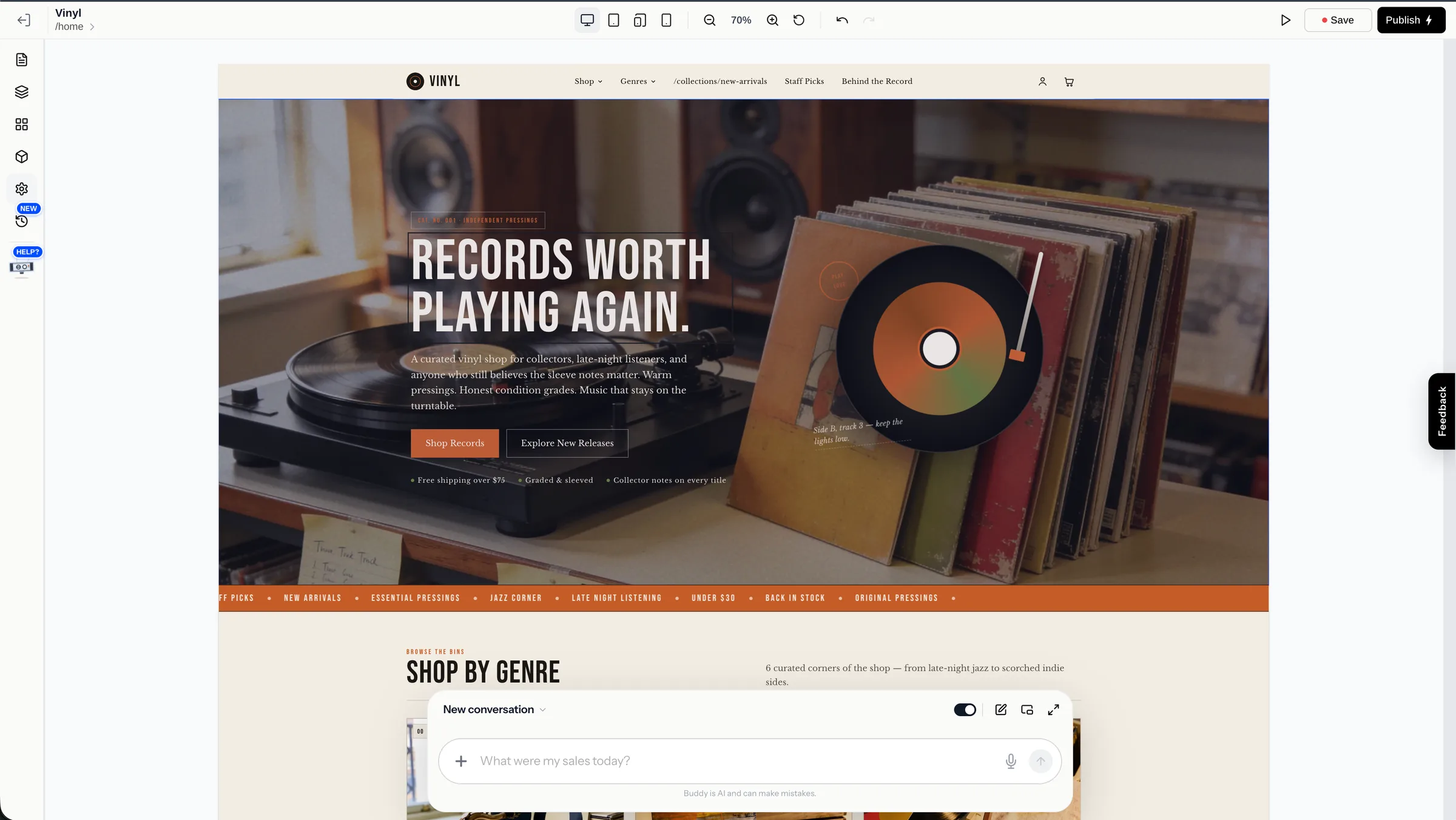
- PagesEvery page of the store. Add one, generate one, or search.
- LayersThe page as a tree of elements. Select, reorder, duplicate, delete.
- LayoutsReady-made navbars and footers, or generate a custom one.
- BlocksDynamic, static, and element blocks to drop onto the page.
- SettingsThemes, store info, SEO, cache, custom CSS, and AI options.
- Version historyPrevious versions of the store, and a way back to them.
- AI BuddyDescribe a change and Buddy applies it across the store.
A sentence in.
A finished page out.
No form to fill in, no editor to graduate to. You stay in one chat and Buddy, the AI assistant built into your store, does the building.
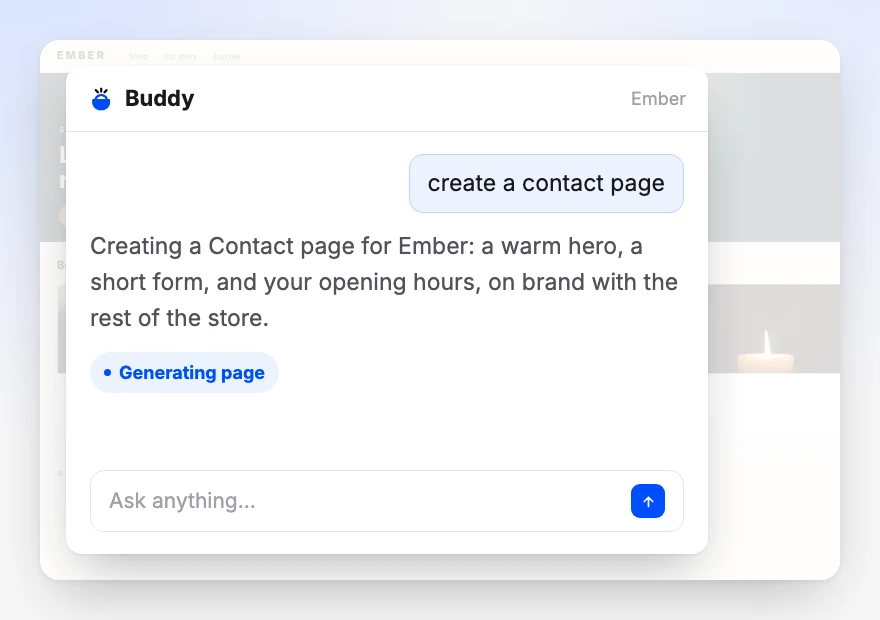
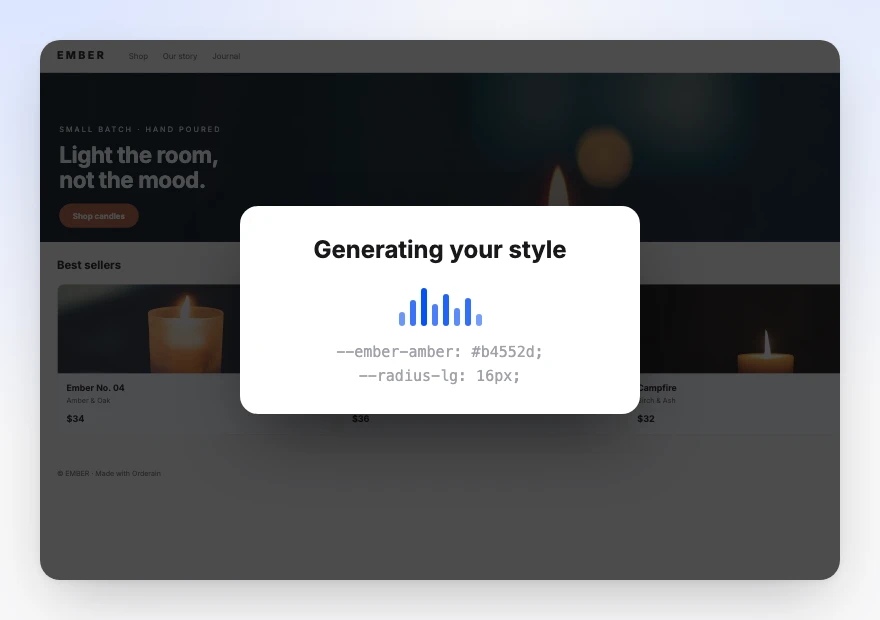
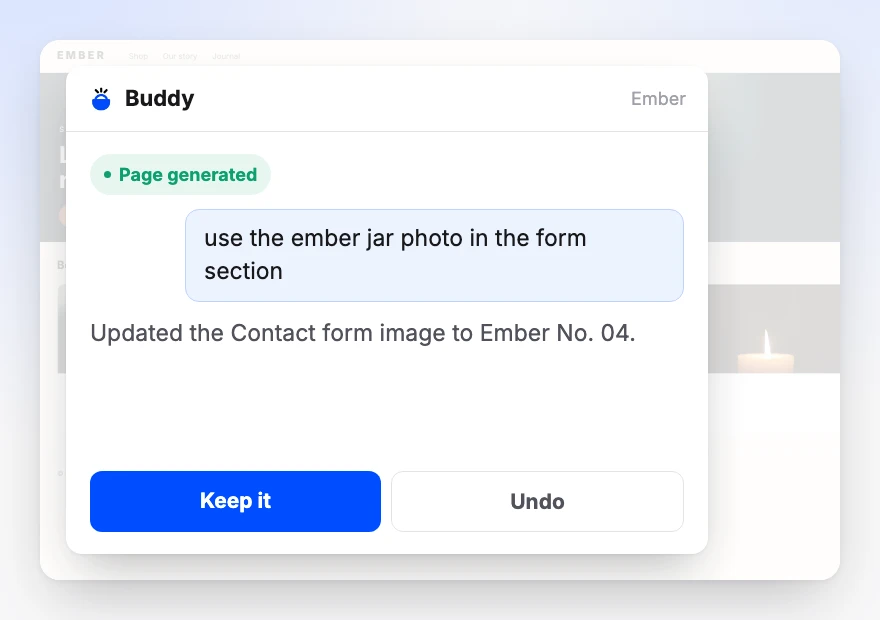
Two prompts. That was the whole build. The dock keeps the thread, so the second instruction lands against the page the first one made rather than starting over. Nothing is committed behind your back either: every change arrives with Keep it or Undo sitting next to it.
AI is the fast path,
not the only one.
Every generated page stays fully editable. Nothing is exported into a format you cannot open.
Nothing goes live
until you say so.
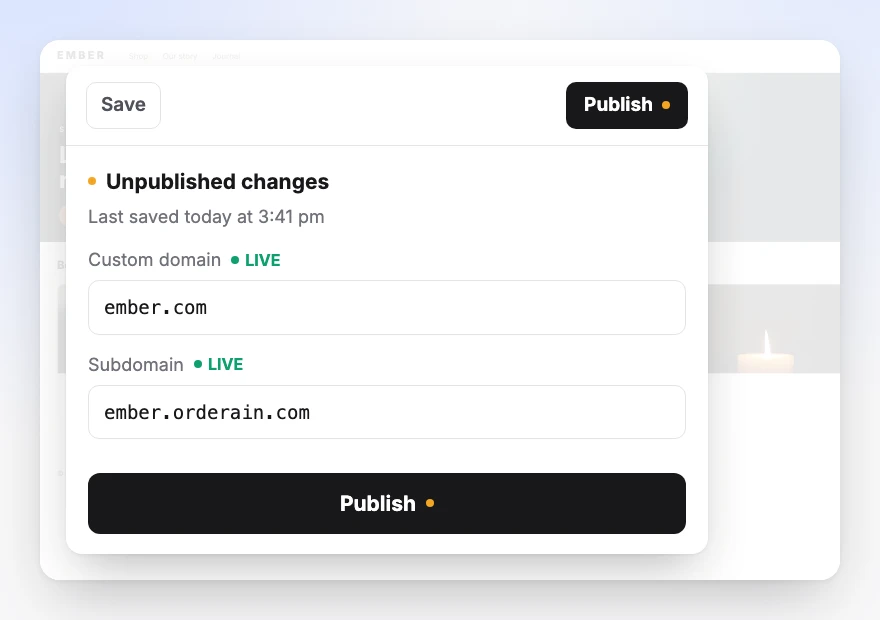
- Preview
- See the store exactly as a visitor would, without saving or publishing anything.
- Save
- Keep the work as a draft and come back to it. Visitors still see the last published version.
- Publish
- The only action that changes what customers see. Until you press it the button carries an unpublished-changes dot and the time you last saved.
- Both addresses at once
- Publishing pushes to your custom domain and your orderain.com subdomain together, each shown live in the same panel.
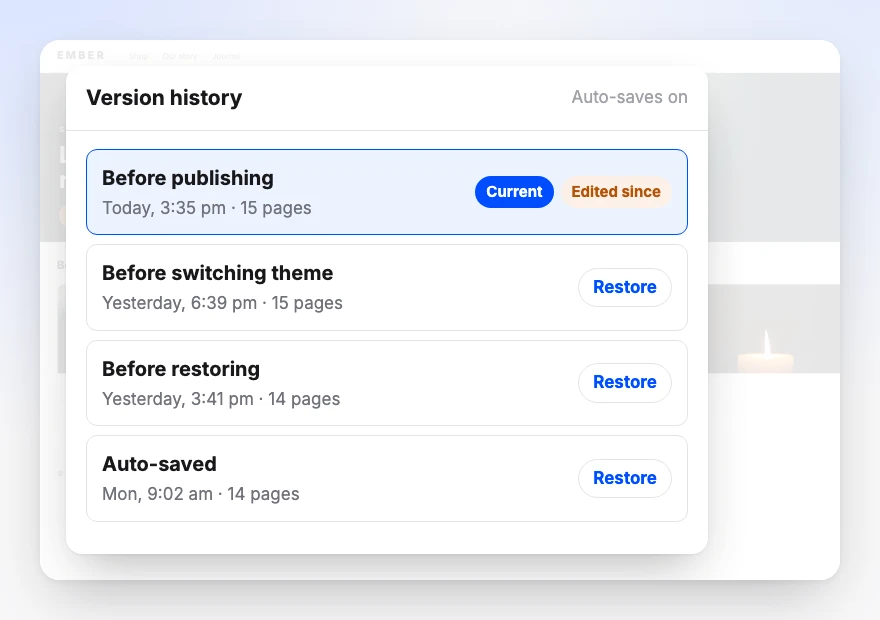
And if you need to go back
Version history auto-saves a snapshot before every publish, restore, and theme change, so the trail builds itself. Each entry carries its time and page count, the live one is flagged Current and Edited since once you touch it, and any other is one Restore away.
Every page set up
and search-ready as you build.
The three panels you fill in when a page is created. None of it is a later clean-up job, and the store-wide equivalents live in store settings.
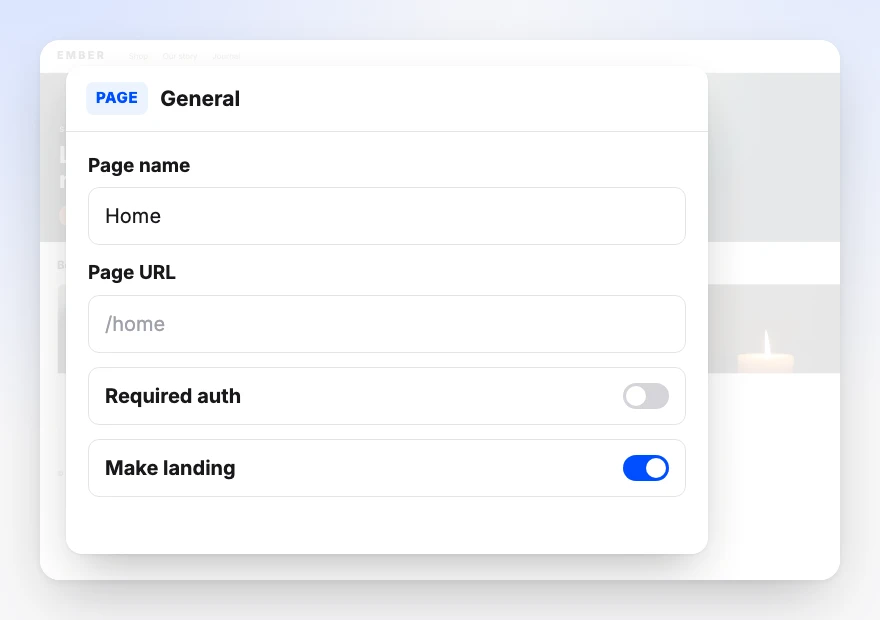
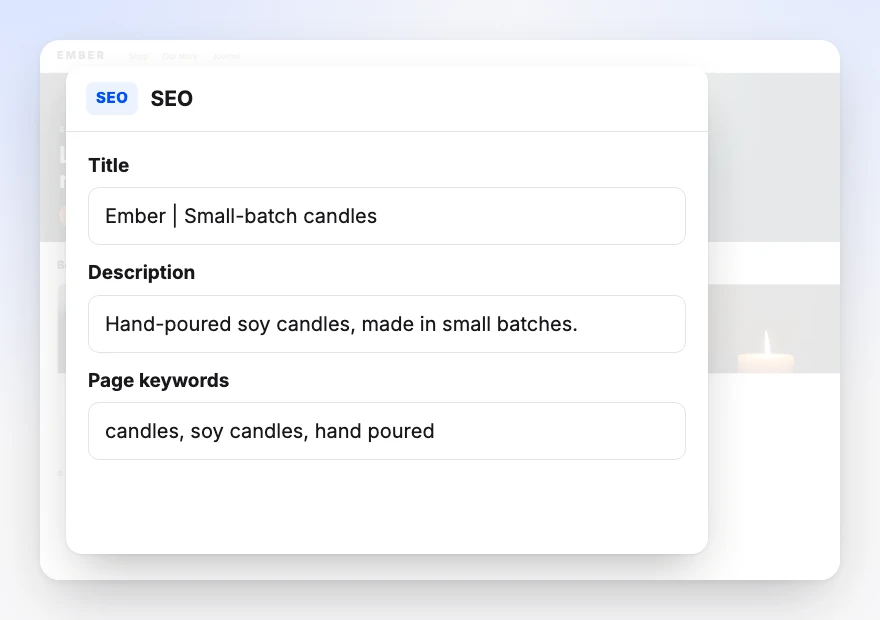
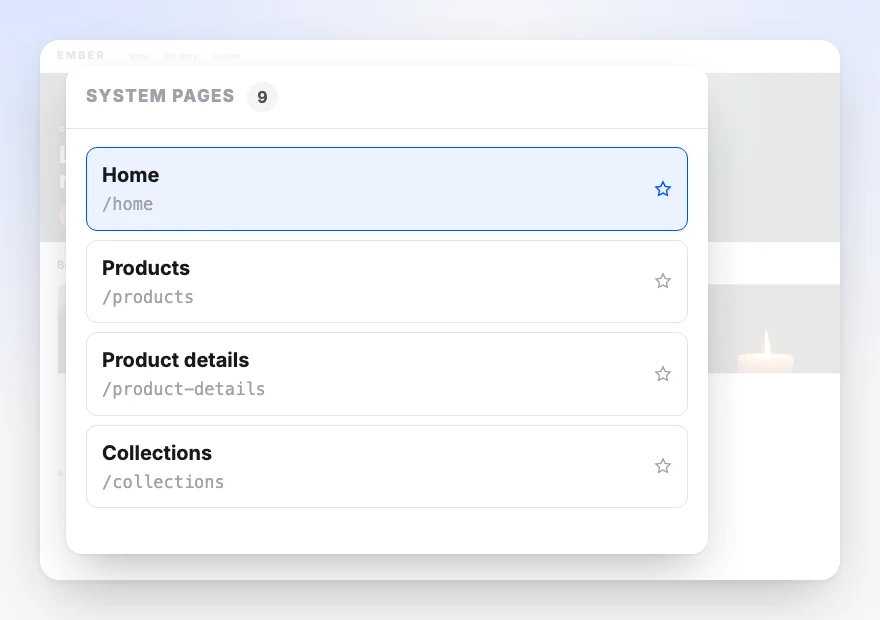
Alongside those system pages you get custom pages you create, rename, and delete at will, and hosted pages Orderain serves for you with your branding applied.
- Sitemap and robots.txt generated for every store
- Server-side rendered, so crawlers get real HTML
- Per-page title, description, and keywords
- Editable URL slug on every page
- Auth-gated and landing-page flags per page
Want the long version?
Jump to a chapter.
What people ask
before they build.
Do I need to know how to code to build the site?
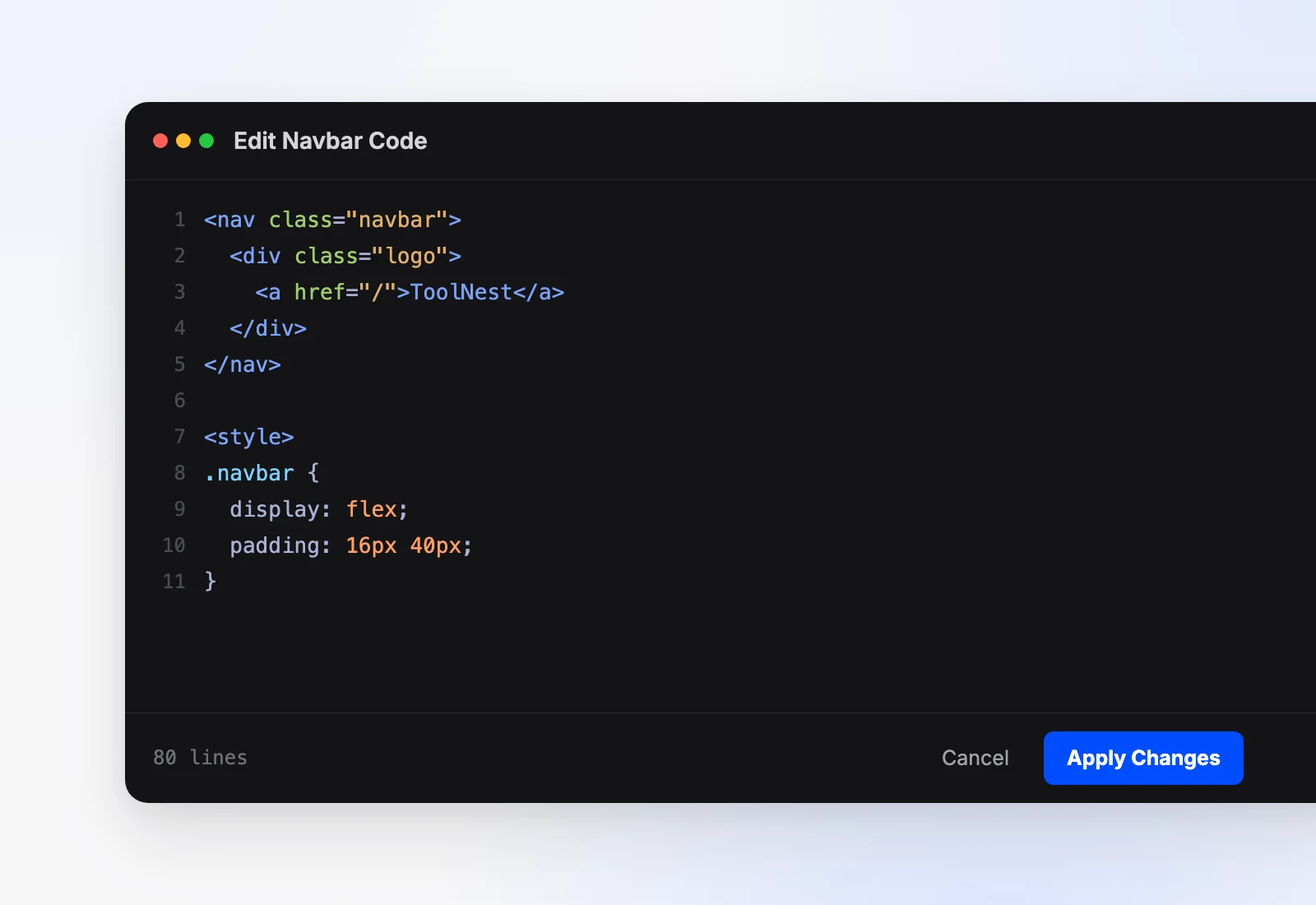
No. You describe the page you want and it is generated in the live canvas, on brand, without a developer. Code is available if you want it: you can open the HTML and CSS behind a generated navbar or footer and edit it directly. It is an option, not a step you have to pass through.
Can I edit what the AI generates, or am I stuck with it?
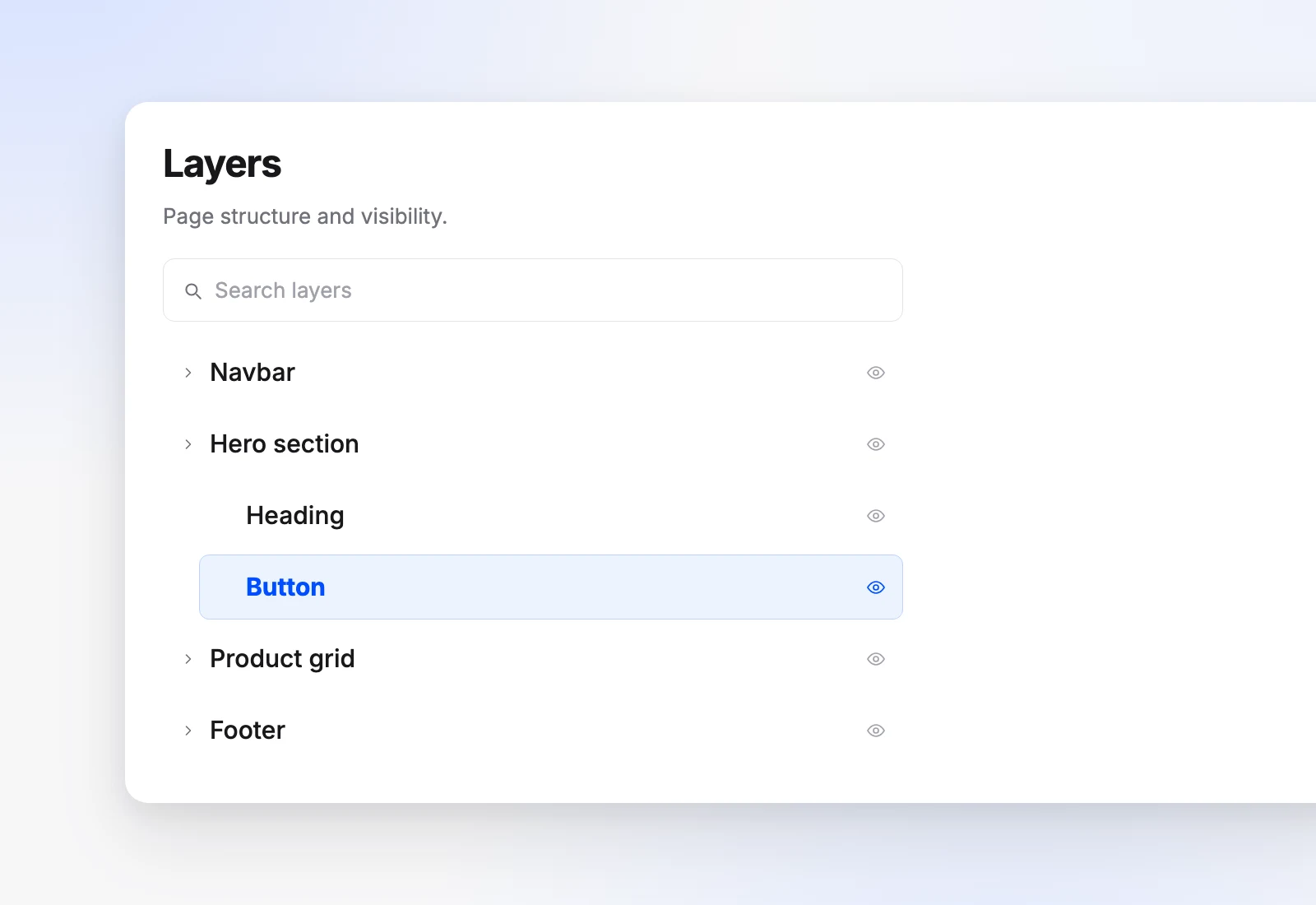
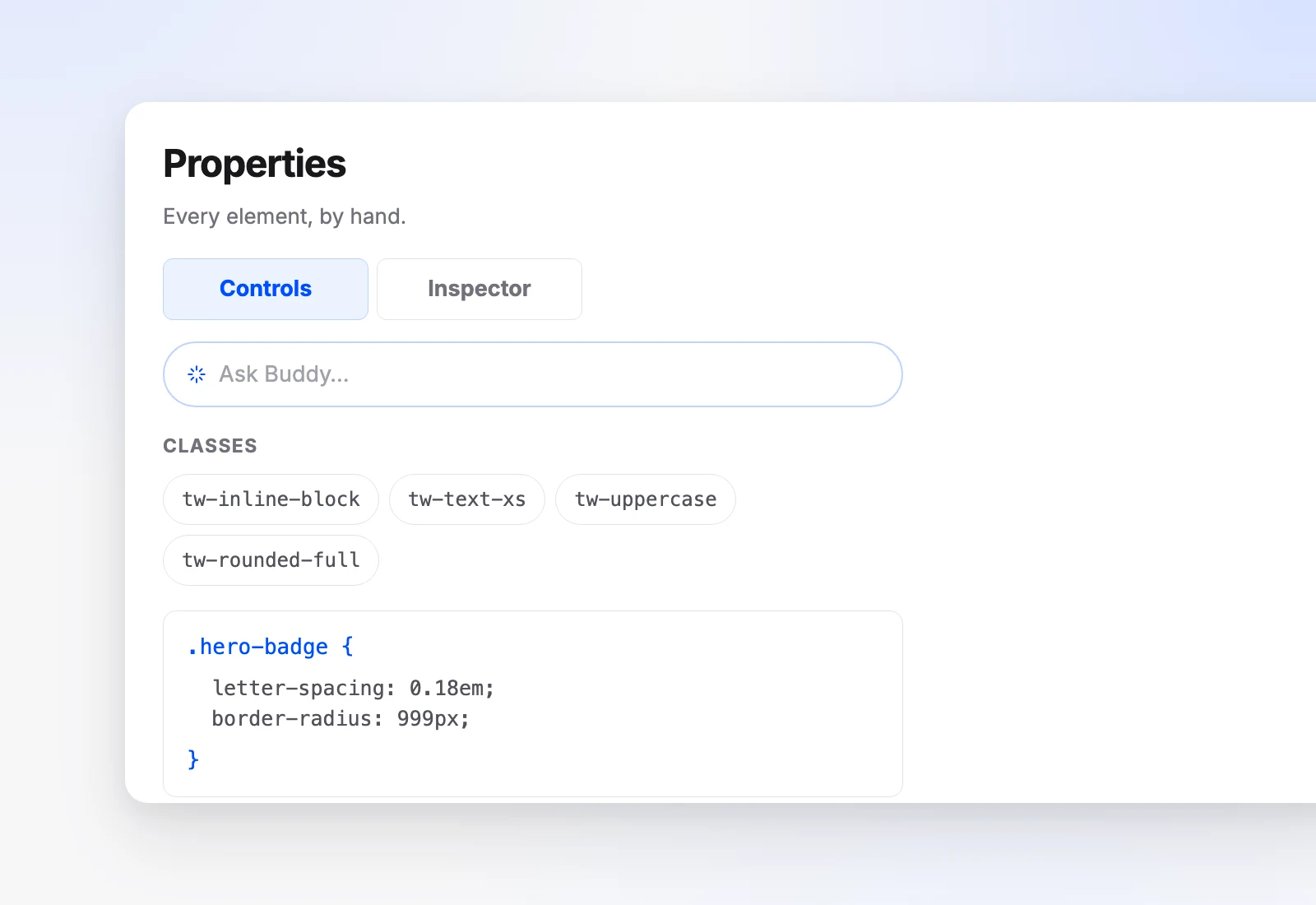
Every generated page stays fully editable. The layer tree gives you the page as a list of elements to select, reorder, duplicate, and delete, the properties panel edits any element, and the CSS rule editor changes every element sharing a class at once. Nothing is exported into a format you cannot open.
Does anything go live automatically while I am editing?
No. Publish is the only action that changes what customers see. Preview shows the store as a visitor would see it without saving, and Save keeps your work as a draft while visitors still get the last published version. Until you publish, the button carries an unpublished-changes dot and the time you last saved.
What happens if the AI gets a page wrong?
Every change Buddy makes arrives with Keep it or Undo next to it, so nothing is committed behind your back. Beyond that, version history auto-saves a snapshot before every publish, restore, and theme change. Each entry carries its time and page count, and any of them is one Restore away.
Are the pages it builds good for SEO?
Storefronts are server-side rendered, so crawlers get real HTML rather than an empty shell they have to run JavaScript to read. Every page has its own title, description, keywords, and an editable URL slug, filled in when the page is created rather than chased down later, and a sitemap and robots.txt are generated for every store.
Can I publish to my own domain?
Yes. Publishing pushes to your custom domain and your orderain.com subdomain at the same time, and both are shown live in the same panel so you can see what went where.
Should I start from AI or from a theme?
Either, and both land you in the same editor with the same Buddy in it. Building with AI is the quicker route: describe the store and the branding, pages, and products are built for you. A theme starts you from one of 51 or more designs with the layout already decided, which you then customise the same way.
Is the builder included in every plan?
Yes. The Builder, Buddy, and every block are on every plan, starting at $5 a month, and Orderain takes Zero% of your sales on all of them.
Describe the store you want.
Publish it today.
The Builder, Buddy, and every block are on every plan, from $5/month. Zero% platform fees, always.