
The store dashboard
your customers never see.
The Builder decides how the store looks. The dashboard is where it actually runs: orders to fulfil, stock to watch, customers to keep, and a team to let in.
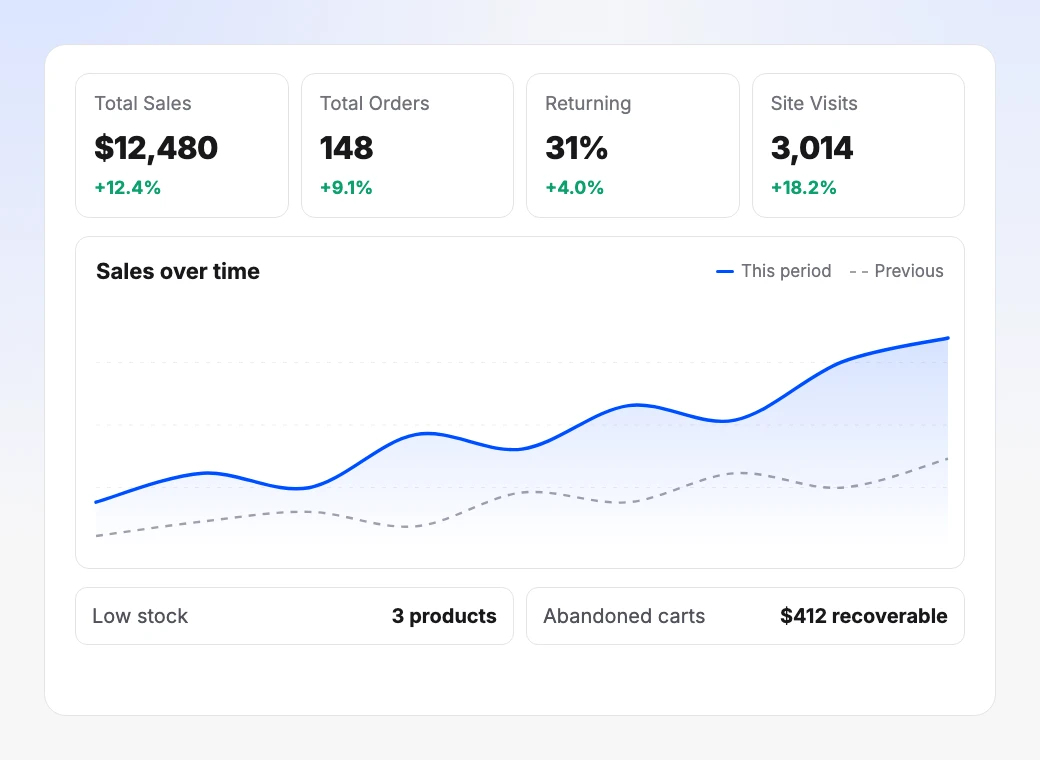
The dashboard home: metrics for your chosen period, sales charts, and the widgets that need attention.
One sidebar,
the whole operation.
Every part of running the business has a home. Nothing here is an add-on you install later.
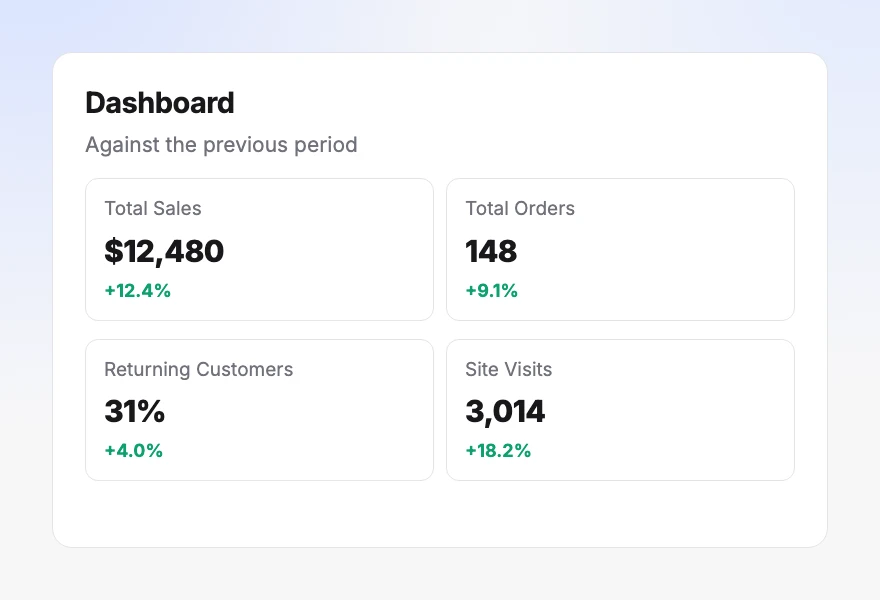 DashboardMetrics, sales charts, and the widgets that need attention.
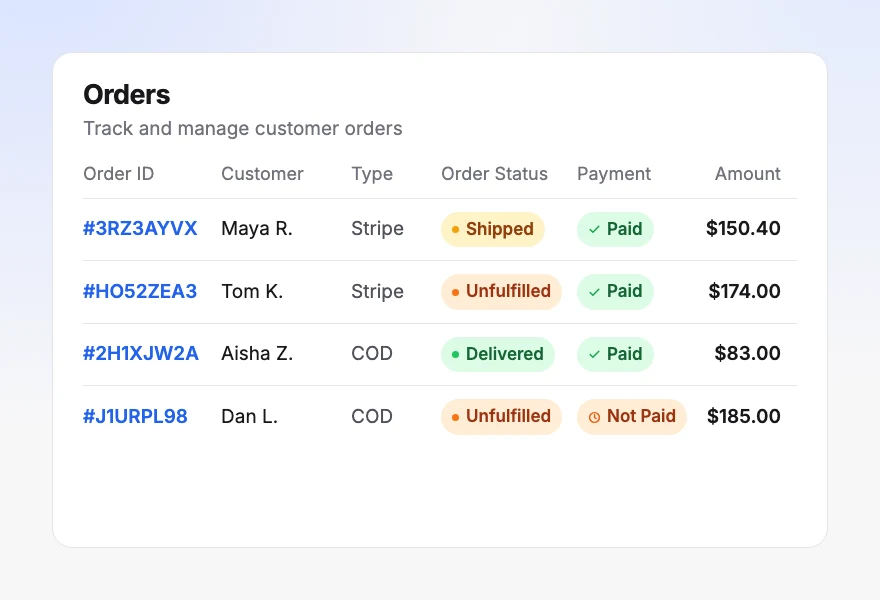 OrdersThe queue, from placed through to delivered and refunded.
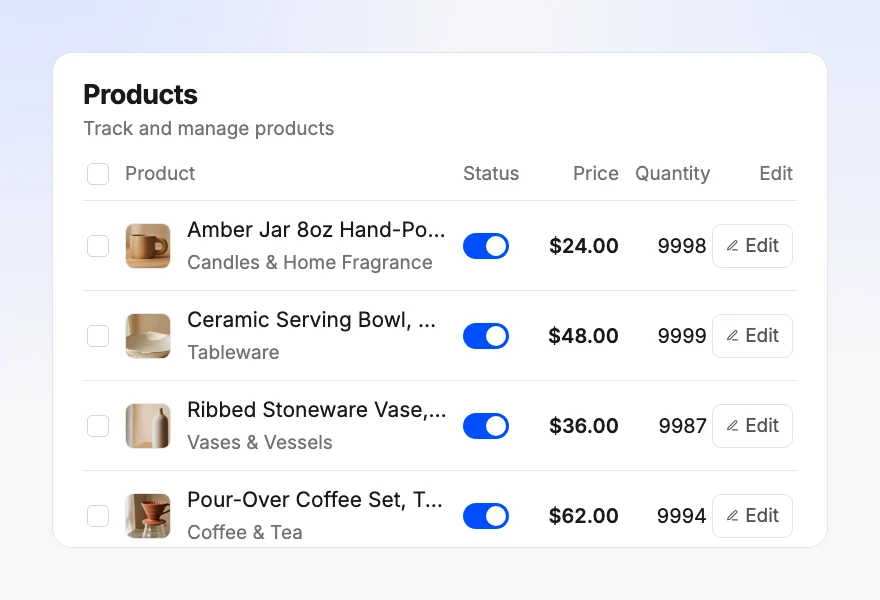 ProductsCatalog, variants, categories, and stock.
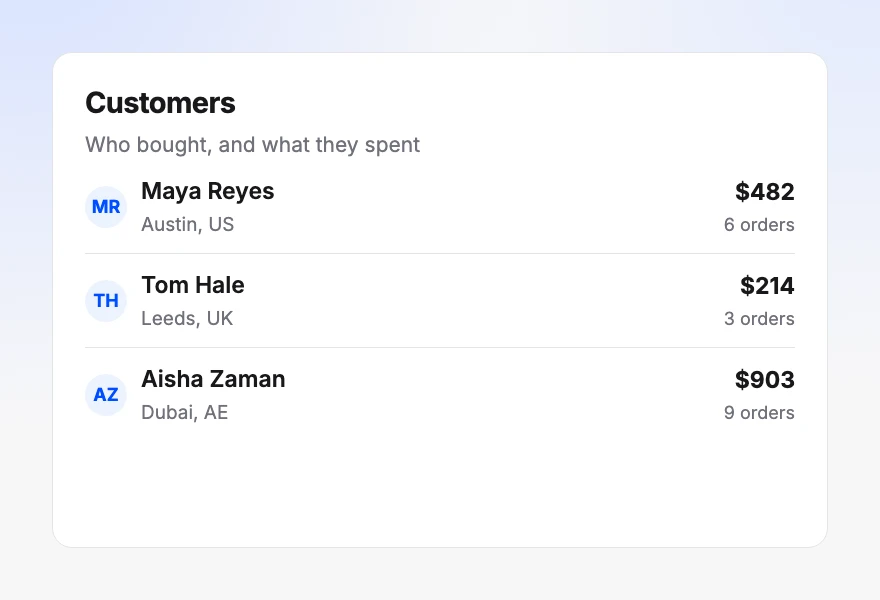 CustomersWho bought, what they spent, and where it shipped.
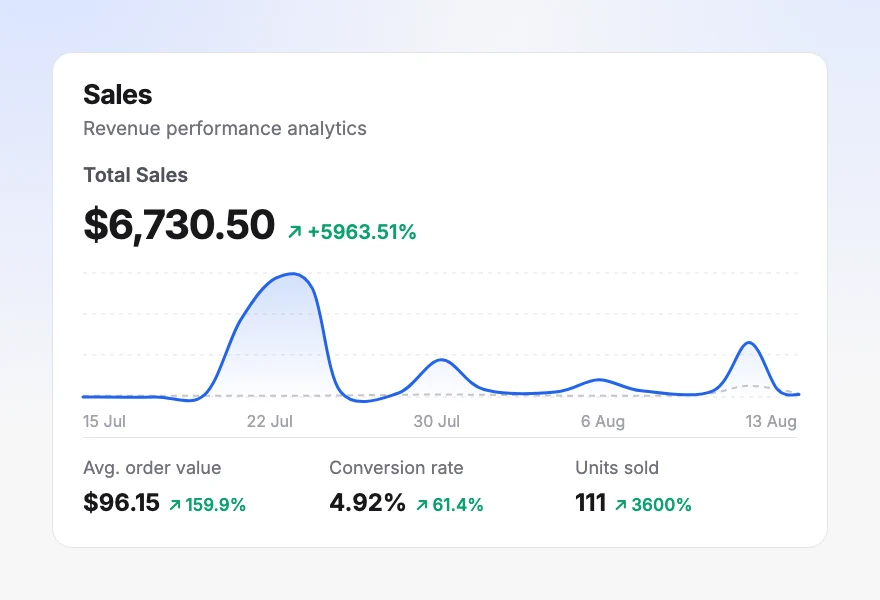 AnalyticsThe full sales and traffic reports.
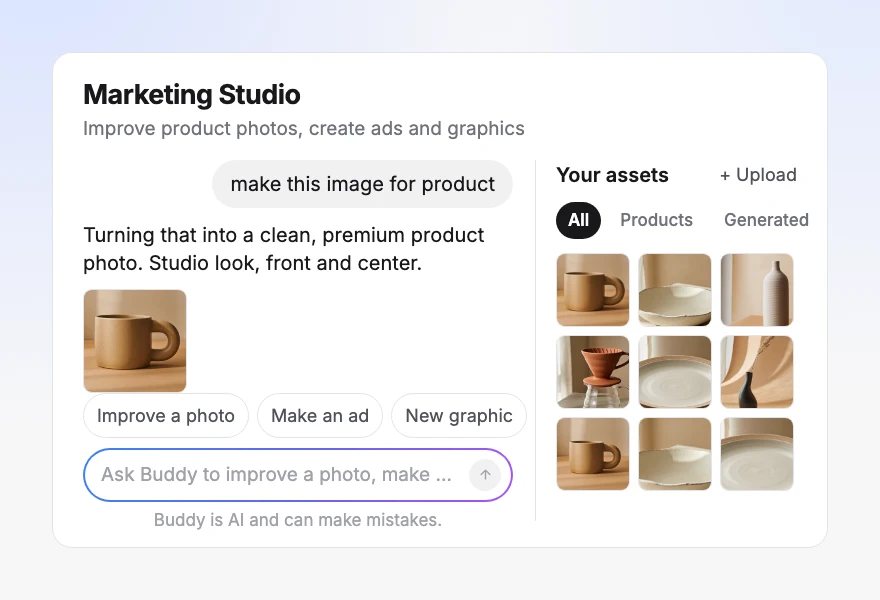 MarketingCampaigns, product imagery, and the assets that sell.
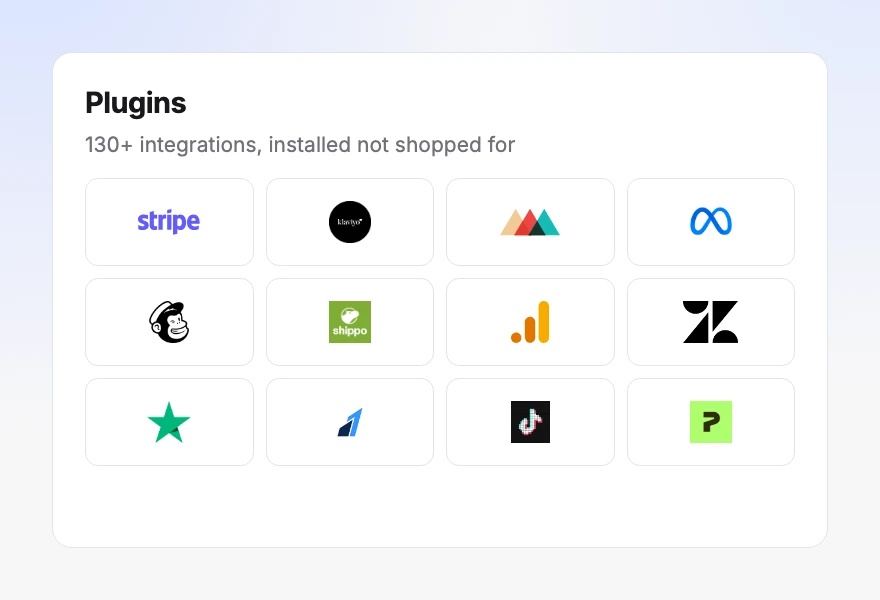 PluginsPayments, marketing, support, and tracking integrations.
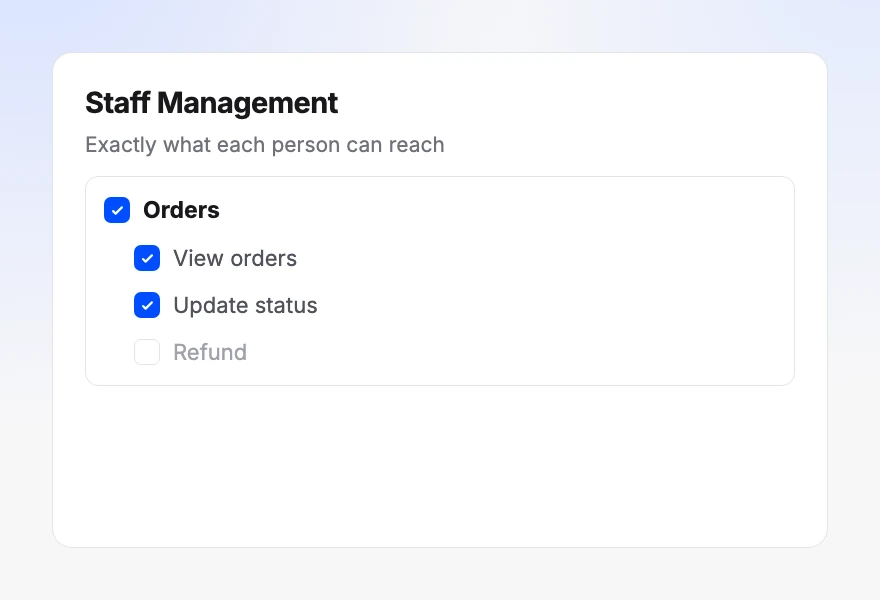 Staff ManagementTeam members and exactly what each can reach.
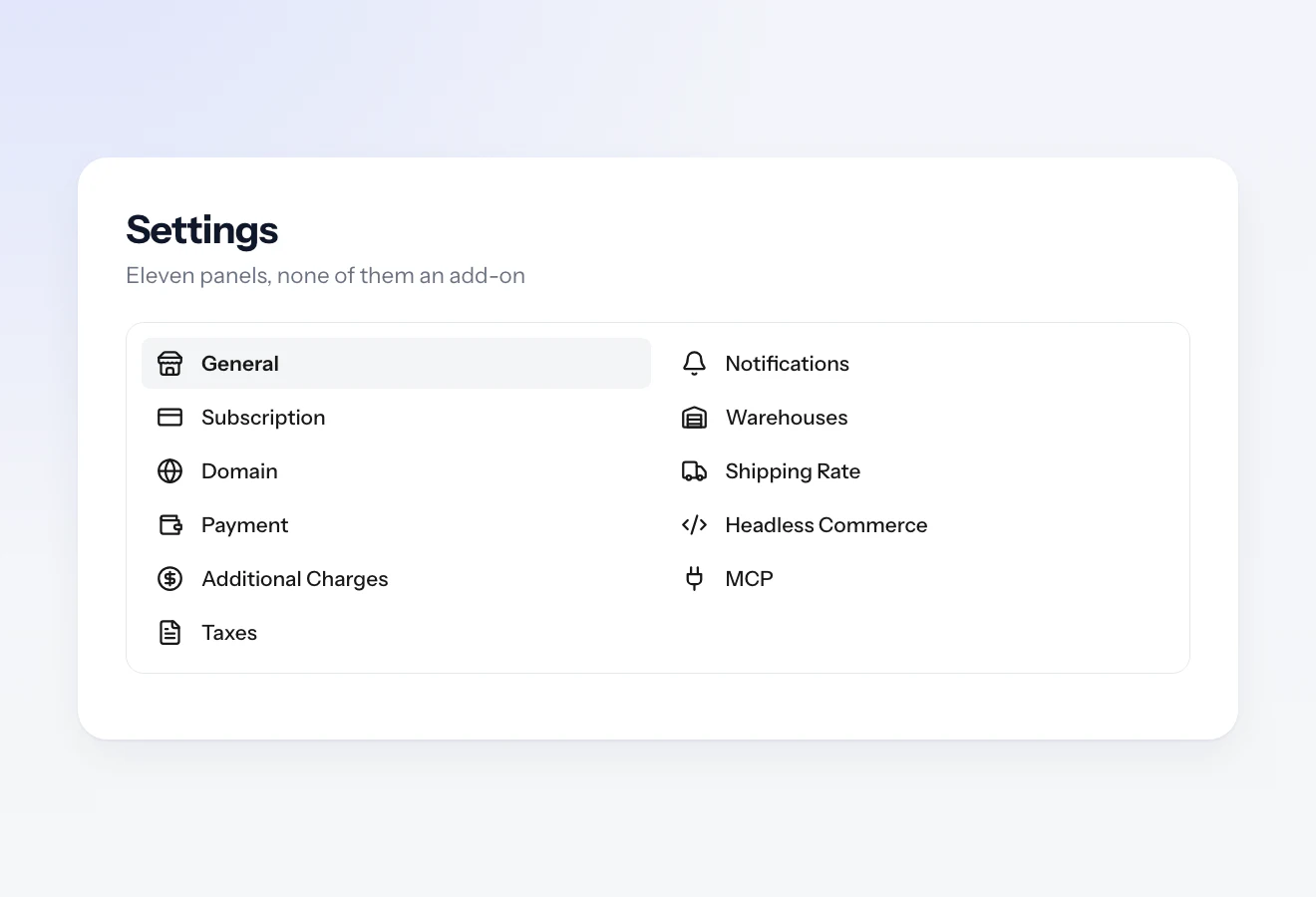 SettingsPayments, domain, shipping, taxes, warehouses, and MCP.
What needs you
before you go looking.
Four headline metrics against the previous period, a sales chart with the previous one behind it, then widgets that surface the work rather than waiting for you to find it.
Order management, from
placed to delivered.
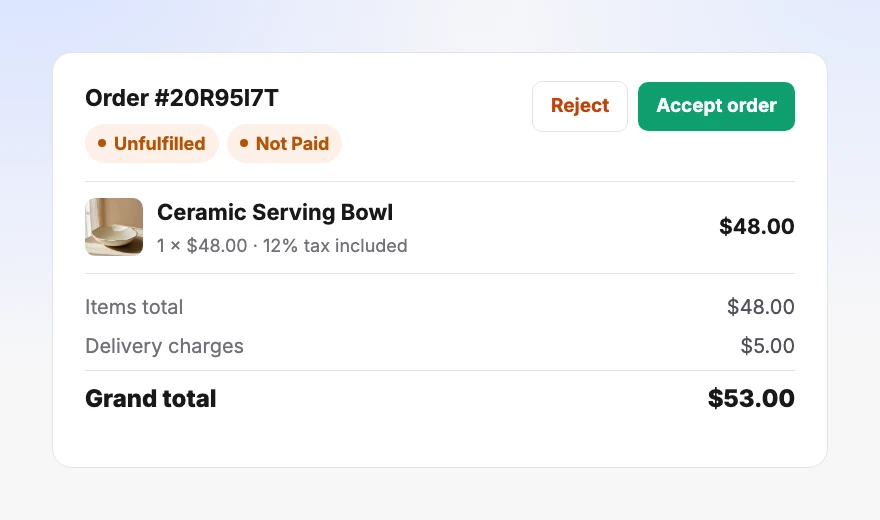
The queue filters to pending, accepted, rejected or cancelled. Opening one order gives you everything below.
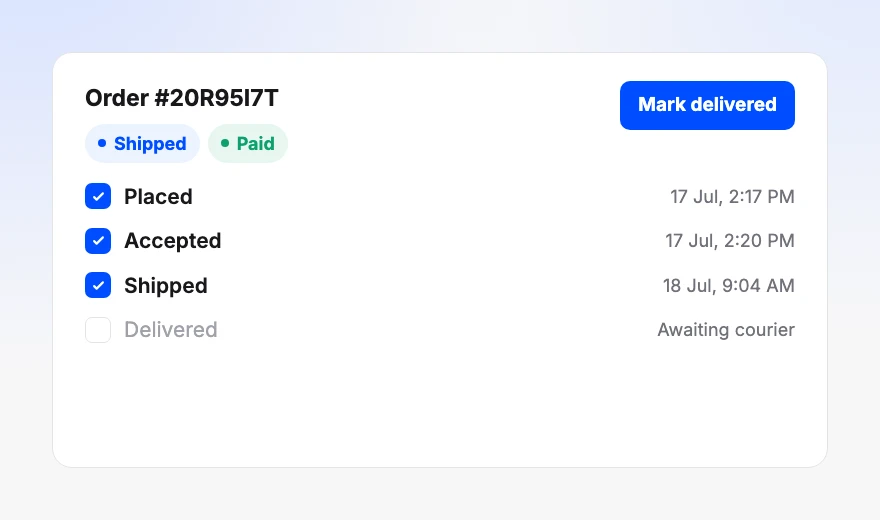
Carts that stall land in abandoned orders with the customer, the items and the amount still attached, so that revenue is something you can go after.
A product catalog that
survives getting big.
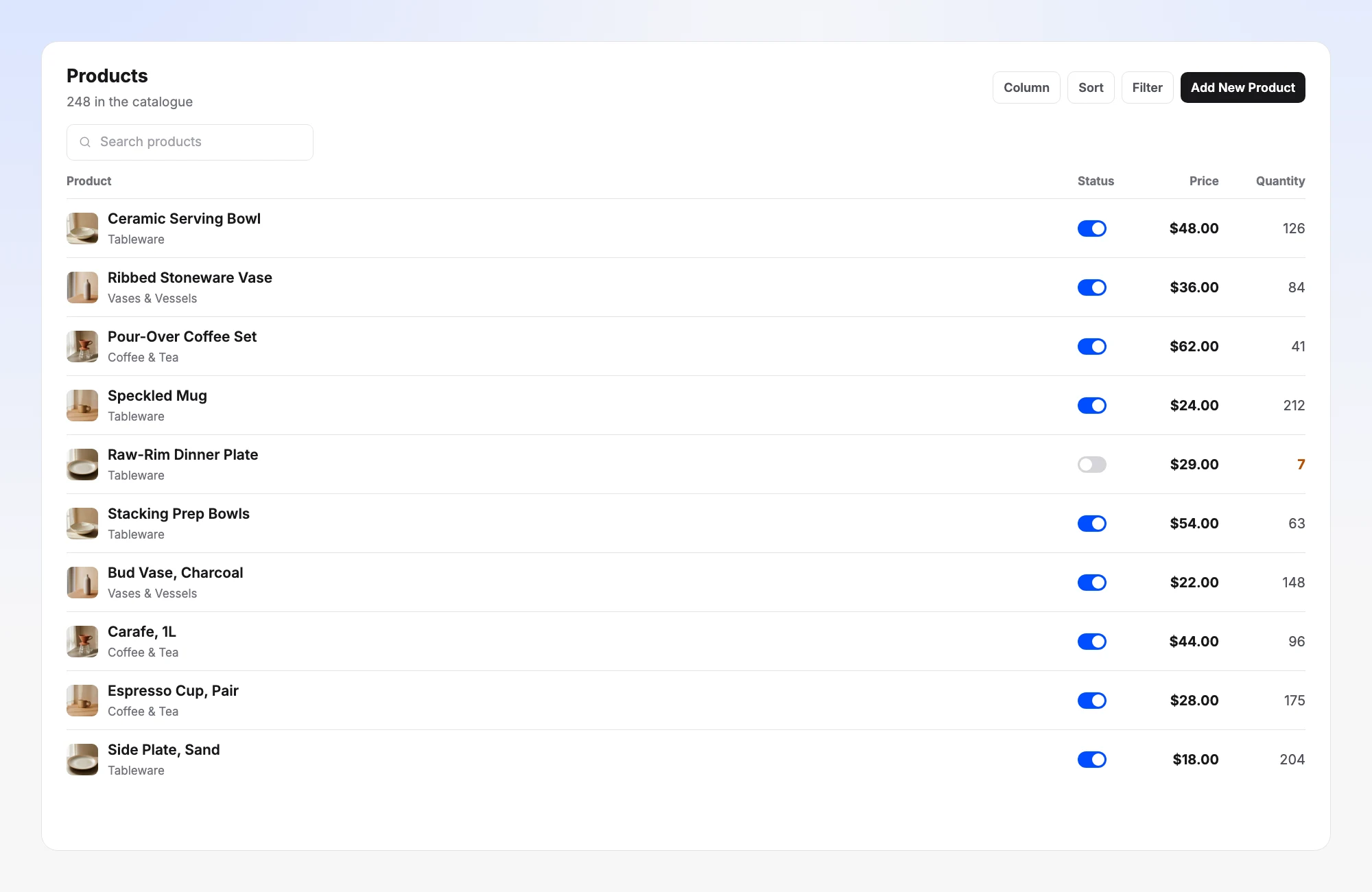
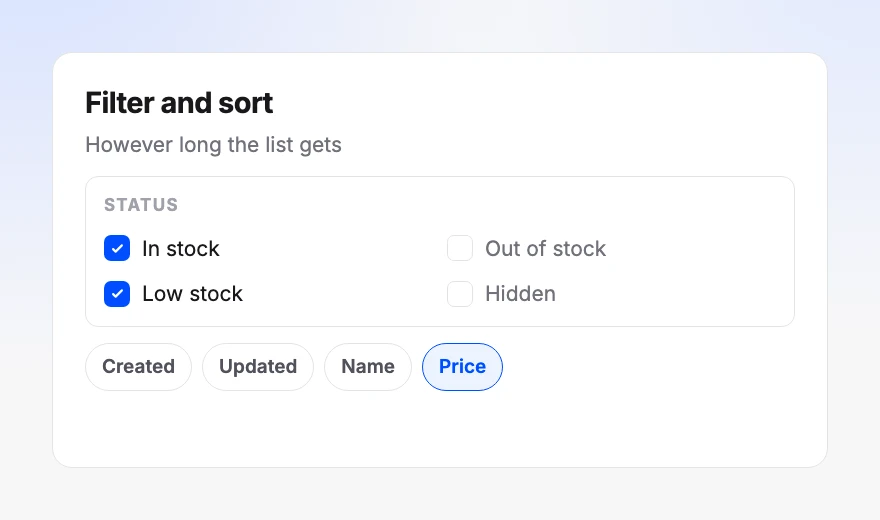
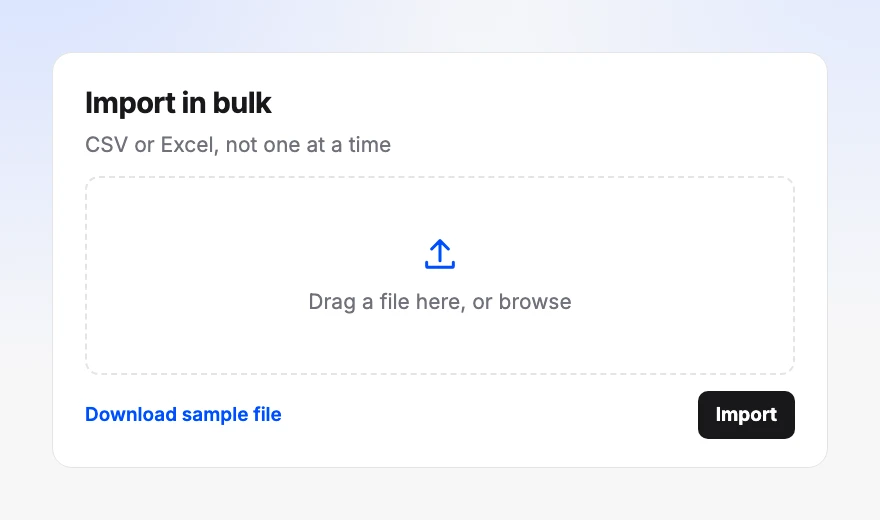
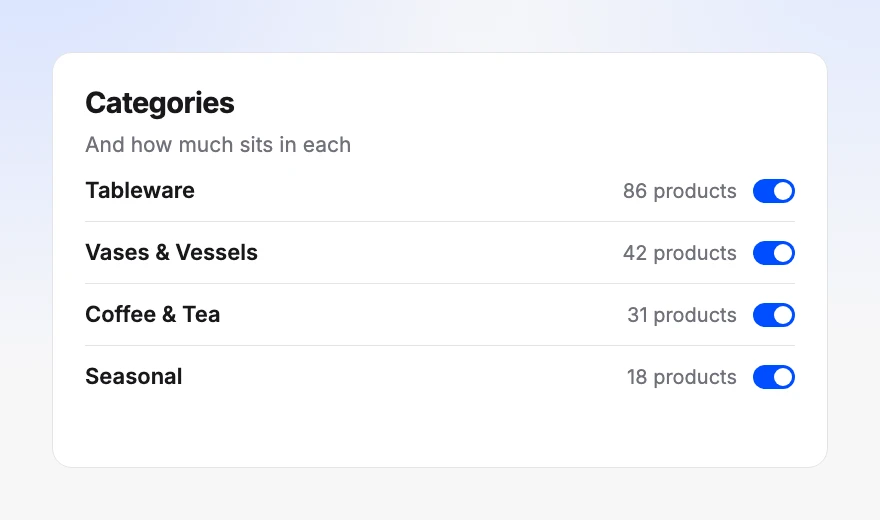
The controls that matter at two hundred products are not the ones that matter at ten. Search, filter, bulk edit and import are in the table from the first day, not bolted on when it hurts.
Inventory you can trust
at the moment of checkout.
Multiple warehouses
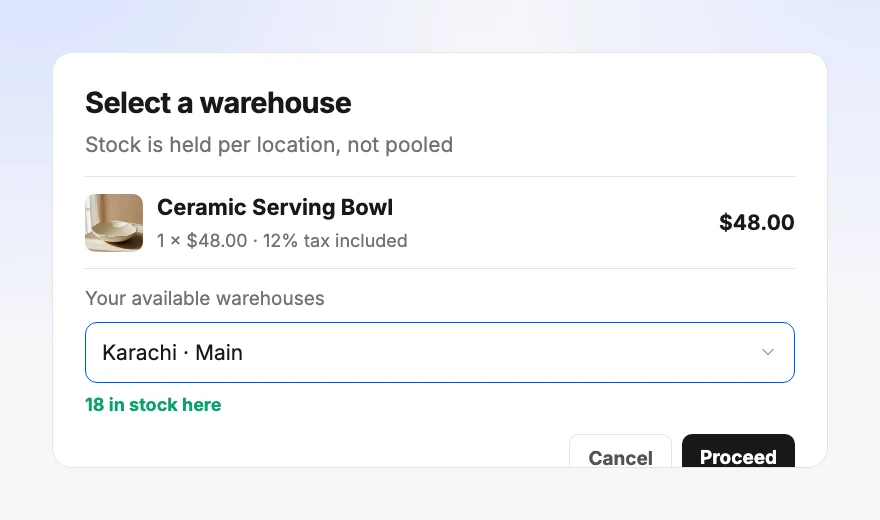
Hold stock in more than one location and fulfil each order from the right one, rather than pretending there is a single pile.
Oversell protection
Inventory is reserved during checkout, so two shoppers cannot buy the last unit in the same minute.
Bulk updates
Import and export stock levels instead of editing a hundred products by hand after a delivery lands.
Customer records behind
the order numbers.
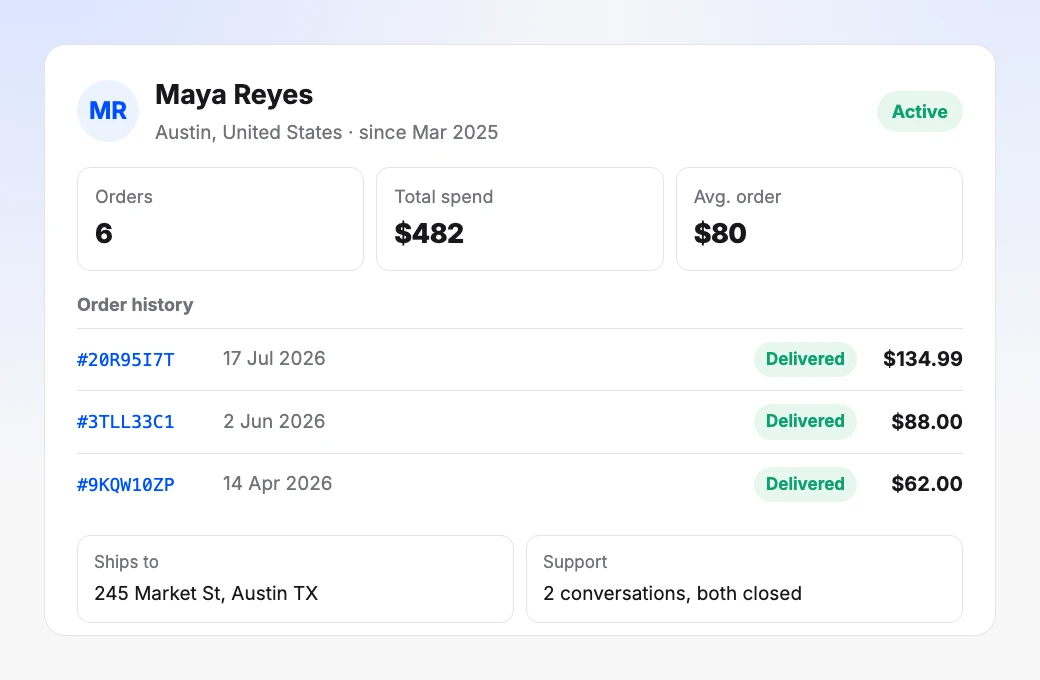
Each record carries what they bought, what they spent, where it went, and the support they have needed. Add or import customers, and act on any of them from the list.
This is the list your returning customer rate is measured against, which is why the same names keep showing up in the reports.
Run it with other people.
Run more than one of it.
Coupons
Percentage or fixed, with usage limits, date windows, and rules that target specific products, categories, or customers. Each coupon carries the sales it generated and how many times it has been used against its limit, so a discount that is only giving money away is visible rather than assumed.
Staff and permissions
Invite the people who help you run it and choose what each one can reach. Permissions are per member and per area, each has their own login, and the activity log records who did what. Someone can handle orders without also being able to touch pricing.
Multiple stores
Run several brands from the same dashboard and switch between them, with each one keeping its own catalog, orders, and reporting. The accounts stay separate; only you move between them.
The dashboard is one half
of the same store.
Design
The Builder
The other half. Everything about how the storefront looks, edited by talking to Buddy.
See the builderReporting
Analytics
The full sales and traffic reports behind the dashboard summary, measured first-party.
See analyticsConfiguration
Store settings
Payment gateways, custom domain, shipping rates, taxes, and warehouses.
See settingsWhat people ask
before they switch.
What is included in the Orderain store dashboard?
Nine sections plus settings: dashboard metrics, orders, products, customers, analytics, marketing, coupons, plugins and staff management. None of them is a paid add-on or a separate app you install.
Can I hold stock in more than one warehouse?
Yes. Inventory is held per location rather than as one pooled number, and each order is fulfilled from the warehouse you pick. Stock is reserved during checkout, so two shoppers cannot buy the last unit in the same minute.
Can I give staff access without giving them everything?
Yes. Permissions are set per area and per action, so someone can view orders and update their status without being able to issue refunds or see settings.
Can I import an existing catalog?
Yes. Products import from CSV or Excel, and you can export the same way. You can also bulk edit many products at once rather than opening them one at a time.
What happens to carts that never become orders?
They land in abandoned orders with the customer, the items and the amount still attached, so you can follow up rather than only seeing the loss in a report.
Does the dashboard cost extra?
No. The dashboard is the platform, not a tier of it. Every section here is included on any paid plan, with Zero% platform fees on what you sell.
Can I run more than one store from it?
Yes. Multiple stores are managed from the same dashboard, so you switch between them rather than keeping separate logins.
Take control of your operations.
Start today.
Every screen above is included on every plan. Zero% platform fees, always.